Category: Uncategorized

  • How to Embed External Content using oEmbed

    How to Embed External Content using oEmbed

    You can embed content from various sites like YouTube videos, Vimeo videos, Tweets and even Reddit comments by pasting their permalink URLs in Page Builder Sandwich.

    Take note that one entire line of text should contain only the URL

    Page Builder Sandwich works alongside WordPress’ oEmbed feature. So URLs that you can embed in the backend should be supported. Plugins that add support to additional oEmbed providers should work as well.

    You can find a list of oEmbed providers from the codex: https://codex.wordpress.org/Embeds

  • Stuff You Can Do Inside PBS

    Stuff You Can Do Inside PBS

    We don’t want a cluttered interface, and wanted everything to be intuitive and easy to discover. So even though the user interface of Page Builder Sandwich looks simple, it’s quite powerful and you can do a lot of things while editing.

    Special Content You Can Insert While Typing

    • Paste in an embeddable URL (e.g. a YouTube video URL) then hit enter to embed it
    • Paste in an iframe html code then hit enter to embed it
    • Type or paste in a shortcode then hit enter to render it

    Manipulating Content Using Your Mouse Cursor

    You can also do a lot of nifty stuff using your mouse cursor. Interactive overlays and toolbars appear when you hover your mouse on different elements. Each of those do different things, such as:

    • Drag elements around – Click and hold your mouse on any element to drag it, then drop it on another element to move it. Click and hold for around 500ms to begin dragging.
    • Top and bottom margins – You can adjust the margins of elements by dragging arrow overlays on text and other elements. Shift + Ctrl (or Command in Macs) while clicking on a corner to reset the margin.
    • Column widths – Drag the edges of columns to adjust their widths, numerical indicators will show the current percentage widths.
    • Resizing – Drag the corners of images and icons to resize them. Shift + Ctrl while clicking on a corner to reset the size.
  • How to Use Markdown

    How to Use Markdown

    Markdown is basically a syntax that you type in while editing in order to add or change the formatting of your text. These are like shortcut keys, but instead of pressing the combination, you type them in.

    Below is a list of all supported Markdown syntaxes in Page Builder Sandwich.

    Block Elements

    ## Heading2
    
    ### Heading3
    

    up to:

    ###### Heading6
    
    > Blockquote
    
    (4 spaces)Preformatted Text/Code
    

    Lists

    * Bullet list
    
    - Bullet list
    
    1. Numbered list
    
    1) Numbered list
    

    Horizontal Rule

    -
    
    ------------------------------(or multiple dashes)
    

    Links

    Typing in urls will automatically convert into a link:

    Head over to https://pagebuildersandwich.com
    
    or you can specify the label and the URL separately:
    Head over to [Page Builder Sandwich](https://pagebuildersandwich.com
    
  • Compatibility With Other Plugins

    Compatibility With Other Plugins

    Page Builder Sandwich was created to be as unobtrusive as possible, so that other plugins should have no problems coexisting with ours.

    Sometimes however, there are exceptions to this. Below is a list of plugins that have some quirks when working alongside Page Builder Sandwich. This doesn’t necessarily mean that they do not work and that they’re incompatible, but only that some behavior may be different.

    Jetpack – Markdown Module

    • Markdown text in the backend editor turn into html tags when saving your changes from the frontend. (Thanks to Jake Jackson for this)

    We will continue on updating this list. If you have found something, feel free to send a support ticket to [email protected]

  • FAQs

    FAQs

    Frequently Asked Questions (technical)

    Can I edit my front page (recent blog articles), 404, category and other similar pages?

    You can only edit single pages or posts using Page Builder Sandwich. Think of it this way, if there’s a “New Post” area with a content editor in the backend for it, then you can edit it with Page Builder Sandwich.

    What custom post types / CPTs are supported?

    You should be able to edit the contents of any custom post type.

    What are the page load times / performance impacts? Will this make my website load slower?

    We have made sure that Page Builder Sandwich has close to zero impact in your website’s performance. When logged out, at the very least, only row and column CSS styles are enqueued, along with the necessary JS and CSS scripts for the shortcodes you have used are enqueued.

    What extra CSS & JS files are enqueued?

    For your website visitors, at the very least, only row and column CSS styles are enqueued, along with the necessary JS and CSS scripts for the shortcodes you have used are included.

  • Where to Get Support?

    Where to Get Support?

    If you’re having trouble, we’re here to help! But first please check the documentation pages first, you might find the answer here and you’ll save time.

    • Support is NOT provided for the Lite version.. except for bugs.
    • Support is only provided for the Premium plugin and only if you have a valid license.
    • Licenses are valid 1 year after purchase.
    • If your license has already expired, you can renew your license at a discounted rate.

    Email us your support inquiries at  [email protected]

  • Understanding Rows & Columns

    Understanding Rows & Columns

    Rows & columns are tools that you can use to create sectioned content.

    When editing using Page Builder Sandwich from a newly created page/post, the content that you type in will all be placed in a single column. This is good for writing blog posts, but if you want to have special layouts for landing pages or contact pages, you’ll probably want a 2 column layout or even a mix of different columns across your page.

    You can add rows & columns by using these buttons in the inspector:

    22ec073e6a file ythKcmfXHF

    Once added, your new row will be outlined:

    d1bfd8117d file bB2ec01I6R

    You can put anything inside your rows and columns – text, shortcodes, widgets, and even add more rows & columns.

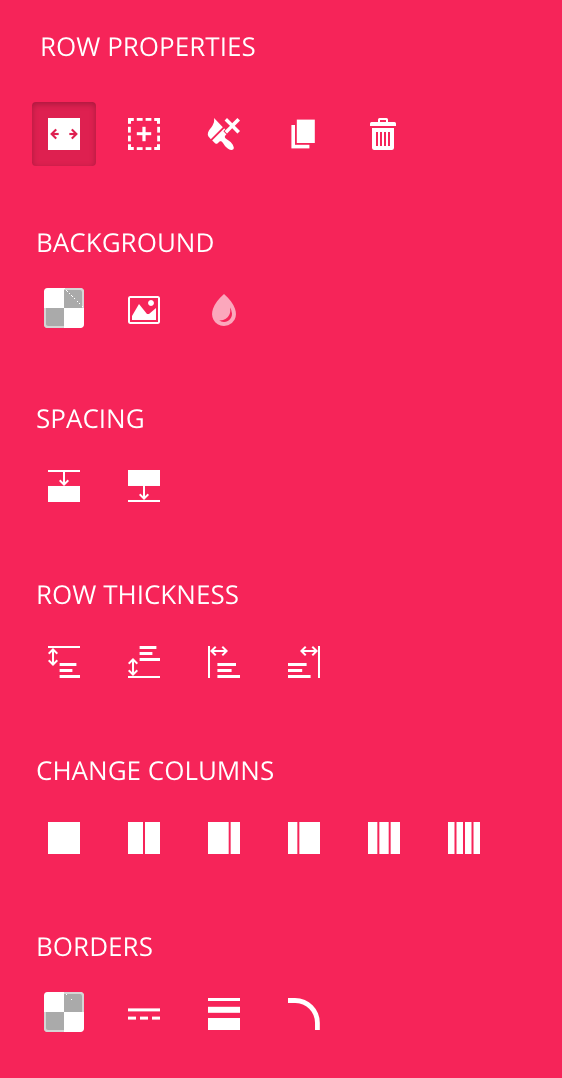
    When a row (or a content inside your row) is selected, more options will become available in your inspector. You can use these buttons to further style your section:

    d9ddd0c520 file EaSMeFS0nW

    There are also additional options for styling your columns below this in the inspector.

    You can move rows into different locations by clicking and holding on the row itself (if you click and hold on an element inside it, the element will be dragged and not the row).

  • Navigating Through Your Content

    Navigating Through Your Content

    You can use your mouse to quickly place your cursor at different areas in your content or select different elements.

    You can also use your arrow buttons on your keyboard to move your cursor across your content. You can use this to go above or below rows.

    When dealing with rows and columns, you can click the edges of the rows to add content right after or before your row. This is especially helpful if you have multiple rows inside each other and you want to add in some content between them.

  • How Do I Remove the Header or Menu from my Pages

    How Do I Remove the Header or Menu from my Pages

    Note: By default, the header is removed from the frontpage only.

    To remove the header or menu from any of your pages, you’ll need a plugin that let’s you add custom CSS, something like Jetpack.

    To remove the header, you’ll need the post ID of your post, then add this custom CSS (replace the 9999 here with your post ID):

    body.page-id-9999 #masthead {
    	display: none;
    }
    

    To remove the menus from a page (replace the 9999 here with your post ID):

    body.page-id-9999 #header-wrapper {
    	display: none;
    }
    

    or when removing the menu from your home page only:

    body.page-id-9999 #header-wrapper {
     	display: none;
    }
  • Padding, Margins and Other Styles Are Not Applying On Elements

    Padding, Margins and Other Styles Are Not Applying On Elements

    If you’re trying to drag top and bottom margin or padding handles and the element’s margin/paddings are not changing, there might be other styles which are forcibly overriding any style changes. This can also happen when you cannot change backgrounds, borders or when transparent images always get a background color.

    To find the problem, open up your browser’s inspector and inspect the element. Browse the styles for that element. If you see something like this:

    ca574b601b file pAMRmfV9DQ

    Then you can be sure that either your theme or a plugin is preventing any other styles from being applied to the element. Mouse over the stylesheet to find out which theme/plugin it’s coming from.

    To fix this, remove the “! important” part of the style, and you should be able to apply styles again. You may need to contact the author of the theme or plugin to fix this.

  • I’m Having Trouble Activating My License

    I’m Having Trouble Activating My License

    Note: This doesn’t apply to Envato customers

    If you’re having errors when activating your license, here are a few things to try..

    1. Deactivate then Activate the Plugin

    This mostly happens to people updating to a higher version. If you directly updated the plugin’s files manually and skipped the whole update or deactivate-activate steps, some processes may have not run properly. Please deactivate the plugin, then reactivate it and try inputting your license again.

    2. Clear Freemius Cache

    As of v3.2, Page Builder Sandwich has integrated with Freemius. There have been cases where clearing Freemius data fixes license activation errors. Here’s how to fix it.

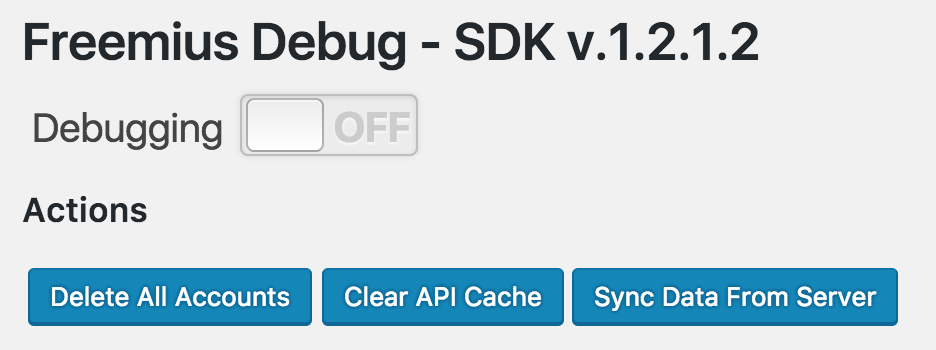
    Go into your dashboard, and the change your url to http://yoursite.com/wp-admin/admin.php?page=freemius (don’t forget to change the URL to correspond to your site.) If you reach this place below, then you’re in the right place.

    eccf3dd364 file SmWPmZQS5b

    Click on the Delete All Accounts button, and then also click on the Clear API Cache button. After doing this, try inputting your license key again.

    3. If It Still Doesn’t Work, Contact Us

    If it doesn’t work, please contact us at [email protected] and please give us details of the problem and your site.

  • CloudFlare & Rocket Loader Compatibility

    CloudFlare & Rocket Loader Compatibility

    CloudFlare is a widely used free DNS CDN. It’s great, but PBS currently has problems when it comes to the Rocket Loader feature. Rocket Loader improves the load time of Javascript files, but it messes up the dependency and call order of PBS’ scripts. If you have Rocket Loader turned on, the edit button for Page Builder Sandwich will not appear (and no Javascript console errors show up).

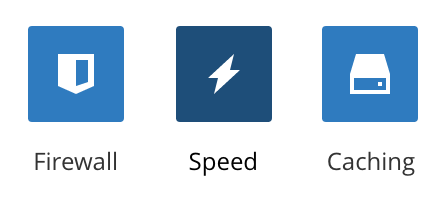
    To turn off Rocket Loader, log into your CloudFlare account and into the settings for your domain. Navigate to the Speed settings:

    e3e66a8071 file

    Then scroll down to the Rocket Loader settings then make sure that the setting is turned off:

    e4dff5b8c0 file tPnWvP09FF

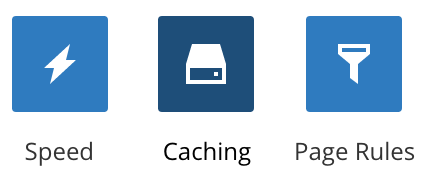
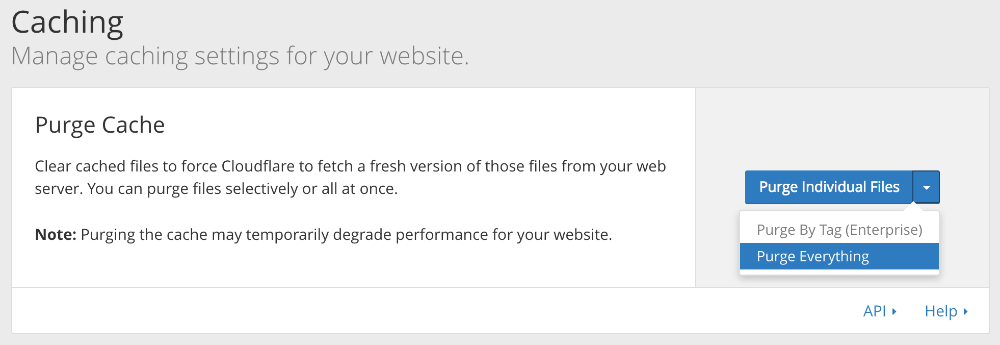
    After turning this off, be sure to purge your entire site’s cache from the Cache settings:

    db1850599b file hSGiBXG0LF

    After purging everything your cache, you can refresh the page and the Page Builder Sandwich edit button should now show up.
    fd8786bba0 file AJdoCLbOcB

  • How to Use Responsive Mode

    How to Use Responsive Mode

    As of version 4.0, you can now switch between desktop, tablet and mobile phone views while editing! We call this responsive mode. In responsive mode, your site would resize into a smaller size to simulate how your site would look like in smaller screens.

    Limited Editing Capabilities

    While viewing your site in tablet or mobile phone views, you will have limited editing capabilities. With this, you can ONLY do the following:

    • Edit text
    • Format text styles using the text formatting toolbar
    • Adjust some margins of elements and rows *
    • Hide rows in tablets or mobile phones

    * PBS applies some responsive styling to your elements and rows, so some margins will not be adjustable.

    Here’re some stuff that you cannot do:

    • Add, remove, drag around elements
    • View element properties
    • Resize images, icons, rows and other resizable elements

    Adjusting Margins for Specific Screen Sizes

    If you are viewing your site in tablet or mobile phone views, any margin adjustments you make only get applied to the current view and to the smaller view. This enables you to tweak your designs to make them look better in smaller screens, separate from the full desktop version.

    Here’s an example to make things clearer.

    1. If you view your site in tablet mode, and adjust the margins of a heading, that adjustment will only apply to tablet screens. This will also get applied to mobile phone screens. If you go back to desktop mode, the original margin will be brought back.
    2. Now, if you go to mobile phone mode and further adjust the same margin again, that adjustment will only apply to mobile phone screens. Afterwards, you’ll have a different margin for desktops, tablets or mobile phones.

    This only applies to adjustments to margins, text changes or text style changes get applied across all screen sizes.

    Hiding Content In Tablets Or Mobile Phone Sizes

    When viewing in tablet or mobile phone views, your rows will have a new “eye” toolbar button that will show up when you hover over them. Clicking this will allow you to show/hide the row for the current screen size.

    Hidden rows will become a bit transparent when editing to indicate that they’ll be hidden when you’re finished editing.

    Note that this feature is only available for rows.

  • I Can’t Find Where to Put in My License Key

    I Can’t Find Where to Put in My License Key

    The Lite plugin and the Premium plugin are two different plugins. In order to use the premium features, you will have to deactivate (or uninstall) the Lite version, then install and activate the Premium plugin, and then input your license key.

    Note: If you activate both the lite & premium plugins at the same time, the plugin will tell you to deactivate the one you have first before proceeding.

    Note for customers who bought PBS from pagebuildersandwich.com: You can also download the plugin from the site, the current license key that you have should still work. If it doesn’t, please contact us and we can issue you a new one.

    After you purchase PBS, you should get an email containing two things:

    1. A link to download the premium version of the plugin, and
    2. Your license key

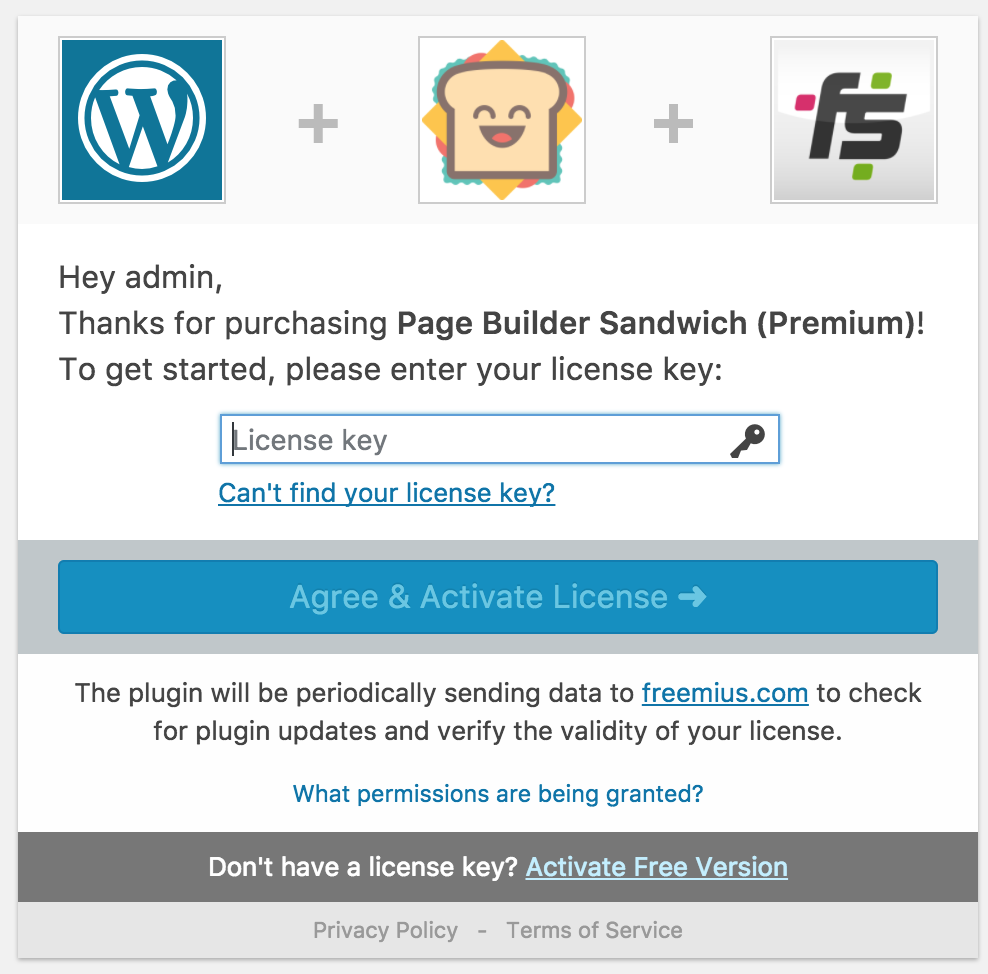
    Install & activate the premium plugin, and then you should be presented with this screen:

    afb003b84c fileEnter your license key here and click on Agree & Activate License. Now the premium features would now be available.

    Alternatively, you can also go to your plugins page, and find the Page Builder Sandwich plugin in the list:

    adefed6601 file TmKnoXuFCH

    Click on the Activate License link, and you should be able to put in your license from there.

  • pbs.option.changed

    pbs.option.changed

    Triggered when an option (from the inspector) was changed.

    Parameters

    None.

  • Making Images Peek Outside Your Container

    Making Images Peek Outside Your Container

    Here I’ve added a row with a background color and then added an image inside it. Here it is:

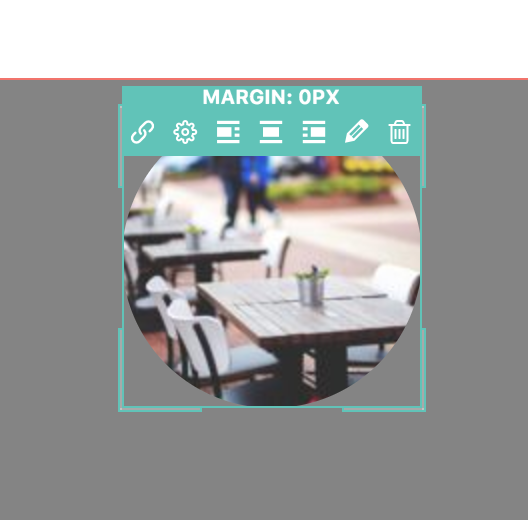
    7a1ad1cd25 file 029qnDthFOTo make it “peek” above the container, hover your mouse over the element that you want to move. Then when the outlines show up, move your mouse beyond the top of the outline. It should show the current top margin value:

    3bb498880e file FqLy7ZTTHD

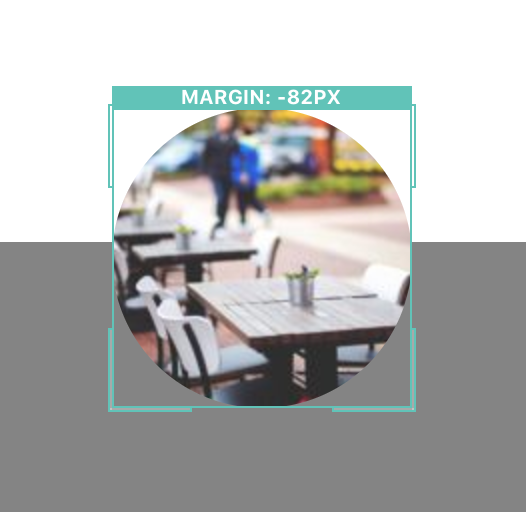
    Click and drag the top margin upward to decrease your margin, making it a negative value:

    4a89f1e31e file Zm8Z0aOtCs

    Now the image “peeks” outside the row!

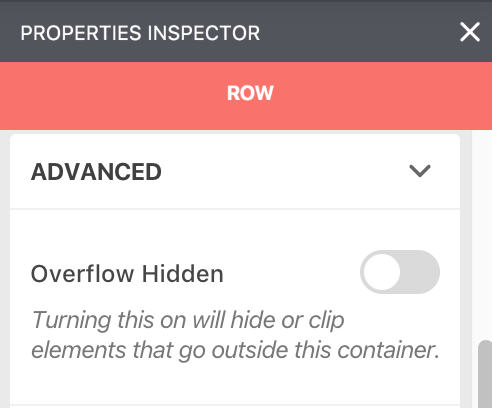
    If the element is getting cut off when it passes beyond the row, open the properties inspector for the row and toggle off the overflow hidden option in the Advanced options:

    0787678afd file pUDej5DLsQ

  • Adding Same-Page Scrolling Anchor Links

    Adding Same-Page Scrolling Anchor Links

    This is a premium feature and available in version 4.0.1+

    Same-page scrolling anchor links are links that point to a specific location in the same page. When you click on a same-page link, your browser will scroll towards the pointed area.

    You need two things in order to create a same-page anchor link:

    1. A custom class or a custom ID on an element, and
    2. A link or button that references the custom class or ID

    1. A custom class or a custom ID on an element

    Pick any element near the bottom of your page and then open up its properties. In the advanced area, add a custom class or custom ID named ” go_here“

    2. A link or button that references the custom class or ID

    Now create a link or add a button element somewhere near the top of your page. Instead of adding a URL as the link, use ” .go_here” (with the dot) if you added “go_here” as a custom class; or use “#go_here” (with the hash) if you added it as a custom ID.

    After you save your page, when you click on your link/button, it should now scroll smoothly towards the element on the bottom of your page.

    You can also use this to target named anchors

    Named anchors such as

    <a name="go_here"></a>

    can also be targetted by adding a link to “#go_here” (with the hash)

    Other uses

    You can also target any other areas in your page, even outside the editor area as long as you target them using their class names or IDs.

  • How to Delete Items in your Page

    How to Delete Items in your Page

    Deleting stuff in Page Builder Sandwich is usually done by simply selecting the text or element then hitting the delete or backspace button.

    Another alternative is to click the delete / remove button on the inspector:

    53dabdd7d7 file ZZXjBNEw56

    There are some cases where this doesn’t work. Items that won’t work are normally containers such as rows, columns or carousels. This is to prevent accidental deletes when deleting content.

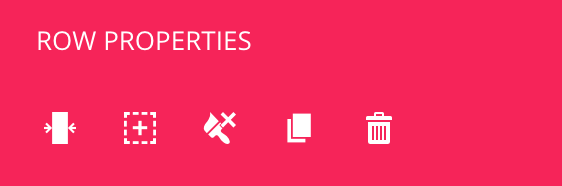
    To delete those items, click on the delete / remove button on the element’s properties in the inspector. For example, to delete a row, you’ll have to use this area:

    96b535f82e file

  • PageBuilderSandwich:: get_all_shortcodes

    Gets all the available shortcodes tags in the site.

    Usage

    $all_shortcodes = PageBuilderSandwich::get_all_shortcodes()
    

    Parameters

    None.

    Returns

    Array. An array of all the detected shortcode tags.

  • Adding Entrance Animations to Your Elements

    Adding Entrance Animations to Your Elements

    In most elements (not shortcodes however), you can specify an entrance animation that plays when the element becomes visible on your screen.

    To do this, hover over an element to make the toolbar appear, and then click on the gear button.

    5c220b4ac9 file Odem5RLPok

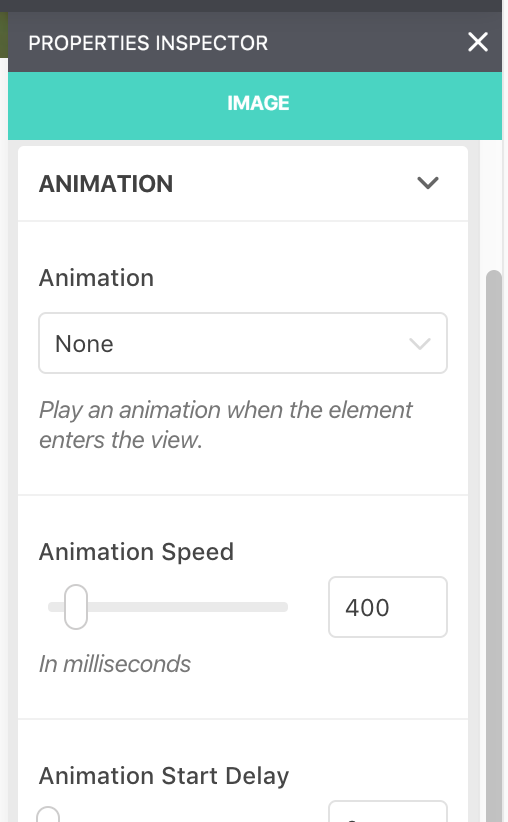
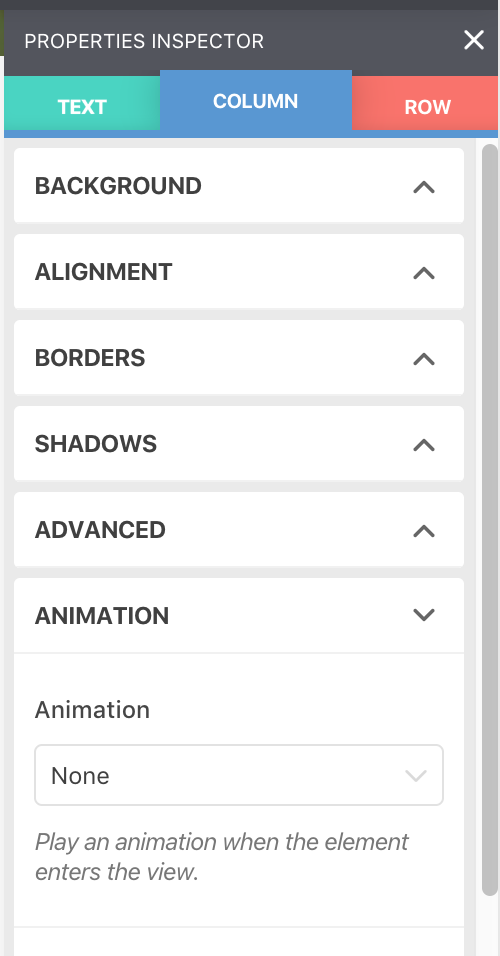
    This should bring up the inspector. Navigate over to the Animations area, open it up and then pick an animation.

    d2675375dd file bKhEnSFBNj

    After picking an animation, it should play to show you a preview. You can further refine the animation with the other options provided.

    Animations play only when the user scrolls and the element comes into view. If the element is already visible when you arrive on your page, it will not animate.

  • Using Markdown

    Using Markdown

    Markdown is basically a syntax that you type in while editing in order to add or change the formatting of your text. These are like shortcut keys, but instead of pressing the combination, you type them in.

    Below is a list of all supported Markdown syntaxes in Page Builder Sandwich.

    Block Elements

    (Mind the spaces)

    # Heading1
    ## Heading2

    up to:

    ###### Heading6 
    > Blockquote 
    (4 spaces)Preformatted Text/Code 

    Lists

    * Bullet list  - Bullet list 
    1. Numbered list  1) Numbered list 

    Horizontal Rule

    -  ------------------------------(or multiple dashes) 

    Links

    Typing in urls will automatically convert into a link:

    Head over to https://pagebuildersandwich.com 
    Dummy Content

    Type “lorem” then press tab to create dummy text content.

  • Coloring Your Background Images

    Coloring Your Background Images

    You can add background images to your rows and backgrounds. What’s more is that you can also tint your background image with a color to make it fit better with your design.

    For example, I have here a row with a background image with some white overlaid text. It’s quite hard to see the text right now because of the background image I picked.

    2b91fa8f2a file mzgaf4V044

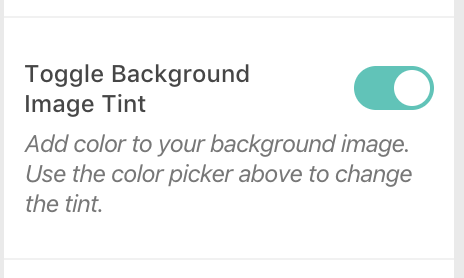
    To make things look better, we can add some color to our background image. To do this, hover your mouse over the row, then click on the row’s gear icon to open up its properties. Go to the Background options, then turn on Background Image Tint.

    bafd9f5d79 file VqSdQk08dVAfter it’s turned on, you change the background color and it will now add a colored tint to your background image. You can also change the strength or opacity of the tint. Here’s my background tinted green to make the text more visible:

    766d6beaa3 file jSAuV7QQ48

  • I Cannot See My Changes After Refreshing

    I Cannot See My Changes After Refreshing

    If you’ve saved your changes in your page and…

    1. it reverts back to the old content after refreshing; or
    2. you can still see the old content when you view the page in another browser (or in incognito mode);

    Possibility #1: Caching

    this might mean that saving didn’t trigger your caching solution from being clearing its stored data.

    If you’re using some sort of caching solution – such as a caching plugin like W3 Total Cache, a server-side caching software like Memcached or Redis, or DNS caching like CloudFlare – it might not have cleared your saved content.

    One way to check whether this is the case is to edit your page in the backend (the normal way), then view your page in the frontend. If your content didn’t change, then maybe your cache didn’t automatically clear.

    Some non-WordPress caching solutions have a complimentary WordPress plugin that can help with purging or clearing the current cache, WordPress solutions usually have buttons or options for this.

    Possibility #2: An Error Occurred

    It’s also possible that some sort of PHP error occurred during saving.

    To check whether this is happening, open up your developer console (preferably in Chrome) then navigate to the Network tab. Once there, save your changes in PBS then you should see multiple entries towards admin-ajax.php. If you see this in red, then that signifies that an error has occurred. Check if you see something like this:

    38a8eb3ad5 file QhA6mhZ3Fo

    If this is the case then please email us at [email protected] along with the necessary login credentials so we can check it out and fix it for you.

    Possibility #3: Wordfence Firewall

    Please read the article on Wordfence compatibility here: http://docs.pagebuildersandwich.com/article/214-wordfence-firewall-setup-compatibility

  • pbs.save.payload

    pbs.save.payload

    Called right before the editor saves the contents. You can use this to place additional data to send during saving (this doesn’t save the data, just sends it via Ajax to the backend)

    Parameters

    payload

    FormData object. The data sent via Ajax for saving.

    Example

    wp.hooks.addAction( 'pbs.save.payload', function( payload ) {
    
    	// Add data to be sent during saving.
    	payload.append( 'my_data', 'My Data' );
    }
    
  • Basic Troubleshooting

    Basic Troubleshooting

    There are thousands of themes and other plugins out there. So while we try and be careful and build everything up to standards, sometimes things can go wrong.

    If you find that Page Builder Sandwich isn’t working right in your set up, here’re a few steps that you can take to troubleshoot the problem.

    Read the Article About When The “Edit with Page Builder Sandwich” Button Doesn’t Appear

    Check out the article here:  The “Edit with Page Builder Sandwich” Button Doesn’t Appear If it doesn’t fix things, read on.

    Check the Other Troubleshooting Articles

    Browse through the different articles in the  Troubleshooting Category in the docs.

    Make Sure Your Stuff Is Updated

    WordPress, your plugins, your theme and even Page Builder Sandwich. It’s always good to be updated. Making sure your stuff are updated means that you’ll have the latest bug and vulnerability fixes for your site.

    Try Editing Your Content in the Backend and Check If It Shows up in the Frontend Page/Post

    If you can’t edit your content with Page Builder Sandwich (and probably an error popup showed up), it may be that the content of current page you are on is all generated by your theme / a plugin. To check this, edit your page/post in the backend normally using WordPress, then check if your saved content shows up in the frontend. If it doesn’t appear, then that means the page/post content is all generated and cannot be edited using PBS.

    Deactivate Your Plugins One by One and Check When PBS Starts Working Again

    Sometimes, a plugin may have some conflict with Page Builder Sandwich. To check which plugin may be causing the conflict, deactivate a plugin and check if PBS starts working again. Do this for each of your activated plugins. If PBS begins working again and you can edit your pages, then the plugin you just deactivated isn’t compatible with PBS. In those cases, contact us via email at [email protected] and let us know so we can fix it.

    Switch Back to the Default WordPress Theme

    If deactivating plugins didn’t do anything, try switching your theme to the default WordPress theme (the Twenty-Something themes). If you can start editing your content with Page Builder Sandwich again, then the theme you’re using isn’t compatible with PBS. Send us this information via email at [email protected] and let us know so we can fix it.

    Try Incognito Mode (Rare)

    In rare occurrences, a browser extension can possibly prevent Javascript code in a website from working properly. To check if a browser extension is causing problems, open your browser in incognito mode (Chrome) or in private mode and try accessing PBS, this would open a new tab without any extensions. If it works, then you have a conflicting extension.

    The browser extension PageXray has been found to cause problems.

  • Will This Make My Website Load Slower?

    Will This Make My Website Load Slower?

    We have made sure that Page Builder Sandwich has close to zero impact in your website’s performance. When logged out, at the very least, only row and column CSS styles are enqueued, along with the necessary JS and CSS scripts for the shortcodes you have used are enqueued.

  • pbs_save_style

    pbs_save_style

    A filter to modify the CSS styles being saved for a post. This is called when a save was initiated from the PBS editor.

    Parameters

    $style

    String. The CSS styles sent for saving.

    $post_id

    Int. The post id which we are saving.

  • pbs_add_builder_wrapper

    pbs_add_builder_wrapper

    PBS adds a wrapper to identify the content area of a post. This is called after the wrapper was placed.

    Parameters

    $content

    String. The post content with the wrapper applied.

  • How to Add Images

    How to Add Images

    Adding images are very straight-forward. You can either:

    1. Drag an image from your Windows Explorer or Finder directly into your browser window, or
    2. Click on the media element button and upload it using the familiar WordPress Media Manager.
  • pbs.init

    pbs.init

    Called when the PBS editor finishes loading (not called when the user clicks on the start editing button)

    Example

    Do something after PBS loads

    wp.hooks.addAction( 'pbs.init', function() {
    	console.log( 'PBS is ready!' );
    }
  • pbs_iframe_header

    pbs_iframe_header

    Used within the iframe used by PBS to render its responsive view during editing. This is called right before the <head> tag closes and can be used to add scripts and styles.

    Parameters

    None.

    Example

    add_action( 'pbs_iframe_header', 'change_bg_color' );
    
    function change_bg_color() {
    	?>
    	<style>
    	body {
    		background-color: hotpink;
    	}
    	</style>
    	<?php
    }
  • How to Embed Content from Other Sites

    There are 2 ways you can embed content from other sites:

    1. Embed By Pasting The URL

    You can embed content from various sites like YouTube videos, Vimeo videos, Instagram photos, Flickr photos, Tweets and even Reddit comments by pasting their permalink URLs directly.

    https://www.youtube.com/watch?v=dQw4w9WgXcQ
    

    You can find a list of embeddable URLs from the WordPress codex:   https://codex.wordpress.org/Embeds

    You can also install other plugins that add support for additional embed URLs. For example, Wistia URLs are not supported by WordPress out-of-the-box, you can install their plugin to enable embedding, afterwards, PB Sandwich should be able to also handle them.

    Take note that one entire line of text should contain only the URL for this to work.

    2. Embed By Pasting The Embed Code

    You can also paste in embed codes directly.

    Embed codes look like this:

    <iframe width="420" height="315" src="https://www.youtube.com/embed/dQw4w9WgXcQ" frameborder="0" allowfullscreen></iframe>
    

    Take note that one entire line of text should contain only the embed code for this to work.

    3. Use the Media Button

    Click on the “Add Media” tool, then paste your URL in the “Insert from URL” tab.

    4. Use the

    Shortcode</h2>
    WordPress comes with an shortcode, you can directly type this shortcode in to embed content. For example:
    <pre>https://www.youtube.com/watch?v=dQw4w9WgXcQ

  • Is PBS Available in My Language?

    Is PBS Available in My Language?

    Page Builder Sandwich is now available in:

    • English
    • Hebrew
    • Spanish

    If you would like to help contribute to making Page Builder Sandwich by translating it to your language, head over to our  Transifex page!

  • pbs_pre_save_content

    pbs_pre_save_content

    Called right before the content is saved. This is called when a save was initiated from the PBS editor.

    Parameters

    None

  • pbs_stats_tracking

    pbs_stats_tracking

    PBS sends usage stats for opted-in users every time they save in PBS’ editor. This filter can be used to stop sending data.

    Parameters

    $true

    Boolean. This is always true.

  • pbs_localize_frontend_scripts

    pbs_localize_frontend_scripts

    Adds Javascript properties to the pbsFrontendParams object in the front-end. The pbsFrontendParams object is available in the front-end regardless when the user is logged in and editing.

    Parameters

    $params

    Array. An array of keys and values which will become available in the window-level Javascript variable pbsFrontendParams

    Example

    Make a variable accessible in the front-end

    add_filter( 'pbs_localize_frontend_scripts, 'add_my_property' );
    
    function add_my_property( $params ) {
    	
    	// This will be available in Javascript under pbsFrontendParams.myProperty
    	$params['myProperty'] = 'My Property';
    	return $params;
    }
  • pbs_localize_scripts

    pbs_localize_scripts

    Adds Javascript properties to the pbsParams object in the front-end. The pbsParams object is available in the front-end when the user is logged in and is capable of editing the page.

    This variable also carries a lot of the properties used by PBS during editing, such as nonces, a list of all loaded shortcodes, and translation strings.

    Parameters

    $params

    Array. An array of keys and values which will become available in the window-level Javascript variable pbsParams

    Example

    Add a non-detected shortcode into the editor

    add_filter( 'pbs_frontend_scripts, 'add_my_shortcode' );
    
    function add_my_shortcode( $params ) {
    	$params['shortcodes'][] = 'my_shortcode';
    	return $params;
    }
  • pbs_enqueue_scripts

    pbs_enqueue_scripts

    Enqueue a script or style alongside PBS. This is called only when the post is editable with PBS. When the page isn’t editable with PBS, then this isn’t used at all.

    Parameters

    None.

    Example

    When PBS loads, also enqueue my-script.js

    add_action( 'pbs_enqueue_scripts, 'add_my_script' );
    
    function add_my_script() {
    	wp_enqueue_script( 'my-script' , plugins_url( 'js/my-script.js', __FILE__ ) );
    }
    
  • pbs_save_content_data

    pbs_save_content_data

    A filter to modify the post data to be saved. This is called when a save was initiated from the PBS editor.

    Parameters

    $post_data

    Array. The final post data to be saved, this is passed directly to wp_update_post() afterwards.

    $_POST

    Array. The raw post data sent from the editor for saving. This has already been nonce verified.

    $post_id

    Int. The post id which we are saving.

    Example

    add_filter( 'pbs_save_content_data', 'save_always_as_draft', 10, 3 );
    
    function save_always_as_draft( $post_data, $_post, $post_id ) {
    
    	// For some reason, we always want the post to be a draft.
    	$post_data['post_status'] = 'draft';
    	
    	return $post_data;
    }
  • pbs_save_content

    pbs_save_content

    A filter to modify the post content to be saved. This is called when a save was initiated from the PBS editor.

    Parameters

    $content

    String. The final post content to be saved.

    $post_id

    Int. The post id which we are saving.

  • pbs_iframe_footer

    pbs_iframe_footer

    Used within the iframe used by PBS to render its responsive view during editing. This is called right before the <body> tag closes and can be used to add scripts and styles.

    Parameters

    None.

  • PageBuilderSandwich::instance

    PageBuilderSandwich::instance

    PBS >= 4.3

    Gets the instance of PageBuilderSandwich

    Usage

    $pbs = PageBuilderSandwich::instance()
    

    Parameters

    None.

    Returns

    PageBuilderSandwich object. The current instance of the PBS class.

  • pbs_is_editable_by_user

    pbs_is_editable_by_user

    PBS >= 4.3

    Override the decision whether or not to load PBS in the front-end and allow the user to use PBS to edit the post.

    Parameters

    $is_editable

    Boolean. True if the post should be editable with PBS. False otherwise

    Example

    Disallow portfolio post_types to be editable with PBS

    add_filter( 'pbs_is_editable_by_user', 'disallow_portfolios' );
    
    function disallow_portfolios( $is_editable ) {
    	global $post;
    	if ( $post ) {
    		if ( 'portfolio' === get_post_type( $post ) ) {
    			return false;
    		}
    	}
    	return $is_editable;
    }
    
  • Will I Lose All My Pages When I Delete the Plugin?

    Will I Lose All My Pages When I Delete the Plugin?

    No you will not! All your pages and content should still remain in your site. This means that you can deactivate PBS safely when upgrading from the free version into the premium version, or when you’re just testing things out.

    However, not everything will look the same. You will notice that some items in your page would change because PBS contains additional styles and scripts needed by some of the more elaborate elements.

    Here’re some stuff that would remain when you deactivate PBS:

    • Text stylings
    • Rows and columns
    • Background images
    • Circular images

    Here’re some stuff that would go away when you deactivate PBS:

    • Row & column responsiveness (they won’t look as cool in smaller screens)
    • Parallax backgrounds and other background effects
    • Shadows
    • Carousels
  • pbs_add_builder_wrapper_pre

    pbs_add_builder_wrapper_pre

    PBS >= 4.3

    PBS adds a wrapper to identify the content area of a post. This is called before the wrapper is placed.

    Parameters

    $content

    String. The post content with the wrapper applied.

  • pbs_shortcodes_to_hide_in_picker

    pbs_shortcodes_to_hide_in_picker

    A list of shortcode tags to hide in PBS’s shortcode picker. Use this if you have shortcodes that show up in the picker popup which you have already deprecated or just want to hide from users.

    Parameters

    $shortcodes

    Array. An array of shortcode tags.

    Example

    Hide the shortcode from the picker.

    add_filter( 'pbs_shortcodes_to_hide_in_picker, 'hide_embed_shortcode' );
    
    function hide_embed_shortcode( $shortcodes ) {
    	$shortcodes[] = 'embed';
    	return $shortcodes;
    }
  • What Happens When Your License Expires?

    What Happens When Your License Expires?

    The plugin will still continue working properly as long as you don’t deactivate the license on your site. Once you deactivate it, you cannot re-activate it again.

    You won’t be able to receive updates from your WordPress dashboard, or have access to newer versions. We won’t be able to provide you with awesome custom support.

  • pbs.iframe.resized

    pbs.iframe.resized

    Triggered when the user changes between the different responsive views.

    Parameters

    None.

  • How to Manually Update PBS with a Plugin Zip File

    How to Manually Update PBS with a Plugin Zip File

    Note: Do this when you already have PBS installed and activated, and you want to update it with a zip file that you downloaded from the site, or from an attachment we sent you from an email.

    Note: We’re using another plugin to perform updates, this allows us to update PBS right away without the need to uninstall it first.

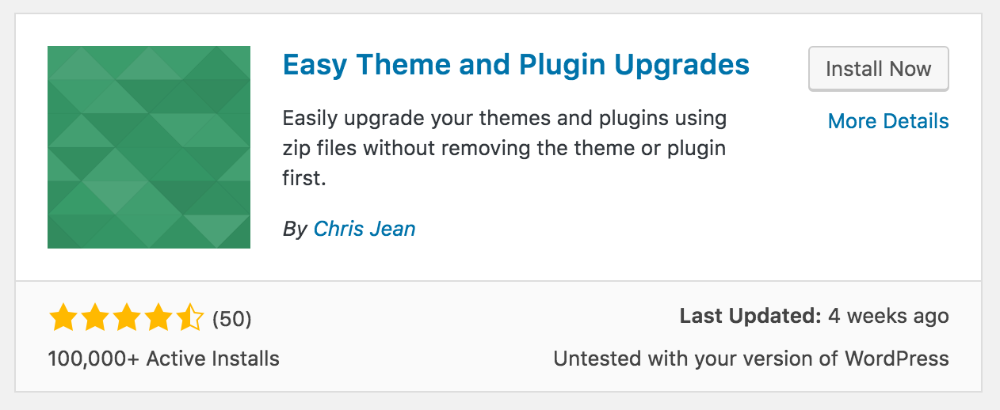
    Go to Plugins > Add New, then in the search box, search for the plugin “Easy Theme and Plugin Upgrades”

    f0dcdeeffe file GD3oacMvwc

    Once you find the plugin, install and activate it.

    e8441d3ad7 file Z7Xzi6kQD8

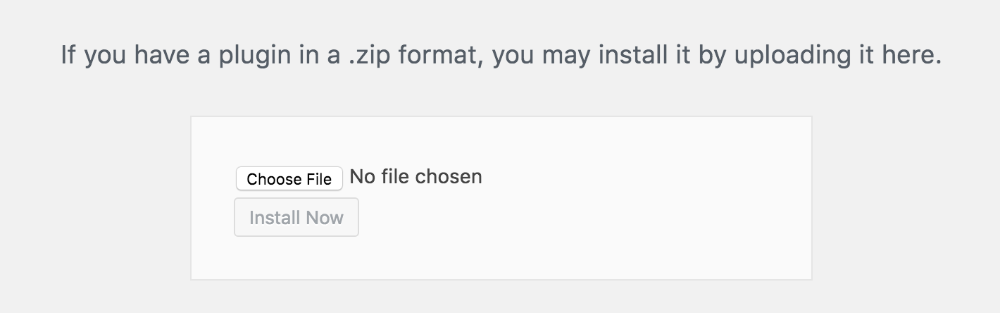
    After activating the Easy Theme and Plugin Upgrades plugin, go again to Plugins > Add New, then click on the Upload Plugin button near the top:

    4de275a631 file A4JzQMWjzu

    Choose and install the Page Builder Sandwich zip file,

    de7803a733 file oUXOASkueT

    That’s it. Now you should have the new version of PBS.

  • How Can I Hide the Yellow Premium Flags in the Lite Version

    How Can I Hide the Yellow Premium Flags in the Lite Version

    If you’re using the lite version, you might have noticed the yellow triangular flags. Those indicate whether a certain button/element/option is a premium feature.

    If you want to hide those, you can go into your Dashboard, navigate to the settings page in PBSandwich > Settings and check the setting for Hide Premium Feature Flags

  • How Do I Deactivate the Plugin?

    How Do I Deactivate the Plugin?

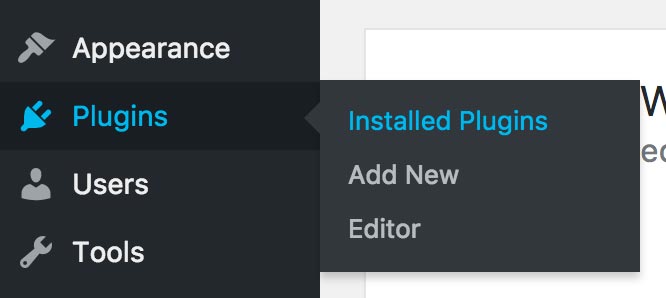
    To deactivate PBS, first log into your Dashboard / backend, then navigate to Plugins > Installed Plugins:

    07b25420a6 file LRa1eOB7Vw

    When in the Plugins page, scroll down your list of plugins and find the one for Page Builder Sandwich. Right below the name, you should be able to see a deactivate link along with other links such as Edit or Change License (this may vary in your site). Click the deactivate link to disable the plugin.

    555d96ed73 file eYVN9yZNif

  • Where Can I Download The Premium Plugin?

  • Will PBS Work with My Theme?

    Will PBS Work with My Theme?

    Technically this should work with any and all themes.

    Along with our users and customers, we have successfully used Page Builder Sandwich with a lot of themes including themes from the WordPress.org theme repository, Genesis Themes, StudioPress Themes, Elegant Themes and themes from ThemeForest.

    However, there might be times when your theme might be doing something unconventional and may prevent Page Builder Sandwich from working properly. When that happens, please send us a support request and we’ll try and fix it.

  • Keyboard Shortcuts

    Keyboard Shortcuts

    To allow you to work faster, you can use various shortcut keys available with Page Builder Sandwich.

    Non-Formatting/Tool Shortcut Key Combinations

    These are shortcuts for non-formatting/tool commands. For formatting/tool shortcut keys, hover your mouse over each button on the text formatting bar to view their shortcut key combination.

    Shortcut Key Description
    CTRL+E (while not editing) Start editing
    CTRL+SHIFT+R (while editing) Refresh page (since CTRL+R is used for right aligning)
    CTRL+S Save changes
    CTRL+ESC Discard changes and stop editing
    CTRL+C Copy
    CTRL+V Paste
    CTRL+X Cut
    CTRL+ENTER Line break / next line
    CTRL+Z Undo
    CTRL+SHIFT+Z (Mac)
    CTRL+Y (PC)
    Redo
  • Caching & Minify Plugins (W3 Total Cache, WP Super Cache, Comet Cache, Better WordPress Minify, etc)

    Caching & Minify Plugins (W3 Total Cache, WP Super Cache, Comet Cache, Better WordPress Minify, etc)

    Page Builder Sandwich works with all caching plugins. However, you might encounter some problems if you turn on their minify or caching functionality.

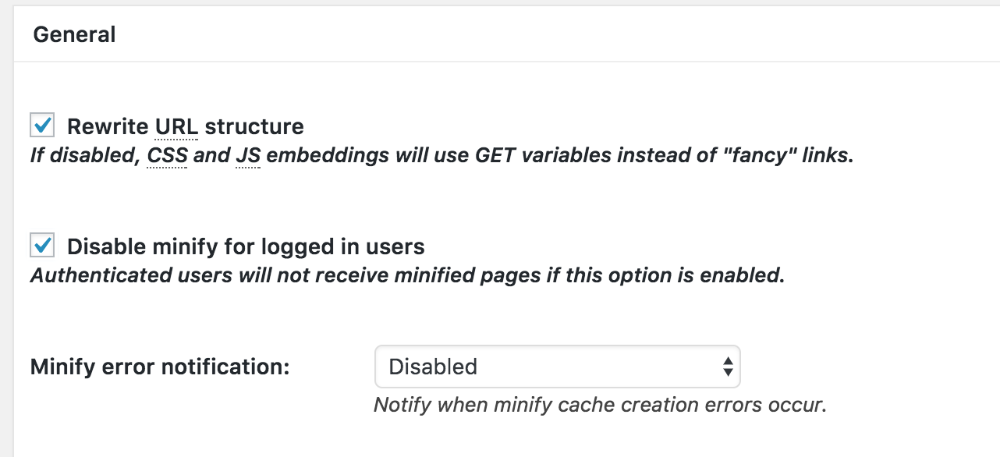
    Just make sure that minify is disabled for logged in users, and it should work fine.

    We’re only showing W3 Total Cache settings here, but other caching & minify plugins should also have similar settings.

    W3 Total Cache

    d7dce04be3 file EG564wdzqj

    Make sure that Don’t cache pages for logged in users is checked under Performance > Page Cache

    134a30cd2b file ONknBiLRav

    If you’re using minify, make sure that  Disable minify for logged in users is checked under Performance > Minify

  • Carousel Element

    Carousel Element

    Availability

    Lite Version Not available
    Premium Version All features available

    • Multiple columns in one carousel slide.
    • Visual editing of carousel slides.
    • Edit carousel slides like you would a row or column. Additional elements such as text and images can be added.

    Usage

    Carousels are a novel way of adding content that loops repeatedly into view. Page Builder Sandwich has a native carousel element that can be used, eliminating the need for external carousel plugins.

    Clicking the gear button of the carousel element allows you to configure the behavior of the carousel, such as slide animation, delay and more. Upon creation, you are given three carousel slides to work on, with the option to add or delete slides. All these slides accepts the usual elements used, such as text, images and certain shortcodes. 

    Switching slides is as easy as selecting the navigation buttons itself. The slide order can also be modified, through the properties (gear icon) as well.

    Useful In

    • Highlighting products, images, messages and other similar content that should be visually emphasized.
    • Making space for more details and information in limited spaces.
    • Landing page headings with 1 or more call-to-action buttons, opening pages, and more commonly, home pages.
  • Video Tour of PBS

    Video Tour of PBS

    Here’s a video tour of PBS:

  • IMPress for IDX Broker

    IMPress for IDX Broker

    We recently added some fixes related to the compatibility issue where both Page Builder Sandwich and IMPress for IDX Broker plugin activated together, This have caused a crash on the frontend for logged in users.

    The fix made PBS functional again, but we have to remove IDX Broker widget the capability to be inserted inside the editor. Despite that, IDX Broker widget can still be used in your Appearance > Widgets menu.

  • HTML Element

    HTML Element

    Availability

    Lite Version All features available
    Premium Version All features available

    Usage

    Click on the HTML element in the Inspector to add a new HTML element, a modal window should appear. Type in or paste in your HTML code in there, then click on save HTML. Your HTML should now show up inside the editor.

    Hover your mouse over the HTML element to show the toolbar. You can edit your HTML by clicking on the pencil icon in the toolbar, or by double clicking on the element itself.

    Useful In

    • Iframe embedding
    • Stat tracking or other tracking codes
    • Customized HTML code
  • Map Element

    Map Element

    Availability

    Lite Version Availablle with limited styling
    Premium Version All features available

    • Custom map icons
    • Colorized maps
    • Custom styled maps / color schemes via snazzymaps.com

    Usage

    Click on the map element to add a map to your page. Whenever the map element is selected, the inspector should show the map settings. You can enter latitude & longitude coordinates or an address on the location field in the inspector to center your map on that area. There are other styling options available there as well.

    You can further manipulate the map element by panning or zooming in/out the map. Take note that your changes on the map will be applied on the element.

    For premium users, your can stylize your map by picking a color to tint it; another option is to use snazzymaps.com to generate some color schemes then use those. SnazzyMaps can be used to create color schemes similar to those one: https://snazzymaps.com/style/20053/papuportal-dark To use these color schemes, copy the Javascript style array into the inspector.

    Map heights can be adjust, however map widths cannot and will always resize to the maximum width available. To resize it, place your maps inside rows and columns. You can also set maps to occupy the full-width of the browser.

    Useful In

    • Contact pages
    • Store / branch locators
    • Single page sites
  • Varnish Cache

    Varnish Cache

    While using Varnish Cache and if after saving your changes you can still see your old content, then it’s possible that Varnish Cache may not have cleared automatically.

    There are some WordPress plugins that allow you to clear your cache: https://wordpress.org/plugins/search/varnish+cache/

    If that doesn’t work, you can also manually purge Varnish Cache by performing this command in a terminal:

    curl -X PURGE http://mysite.com/my-page/
  • PHP 7

    PHP 7

    We have tested Page Builder Sandwich with PHP 7 and everything should work fine without any problems.

    Be careful when upgrading your site from a lower version to PHP 7, as there are a lot of incompatibilities with lower versions that should be addressed in all your themes and plugins.

  • Jetpack

    Jetpack

    Page Builder Sandwich should be compatible with the different modules of Jetpack.

    Jetpack’s Markdown Module

    The Markdown Module does something special when saving content which results in changes getting lost during the markdown conversion. To handle this, markdown text in the backend editor turn into html tags when saving your changes from the frontend. (Thanks to Jake Jackson for helping out)

  • Themes That Use Materialize

    Themes That Use Materialize

    There is a Javascript error that occurs when both Page Builder Sandwich & Materialize are together. There is a conflict between materialize.js and WordPress Core’s color picker.

    There’s an issue placed in Materialize’s GitHub repo about this: https://github.com/Dogfalo/materialize/issues/2821

  • NextGen

    NextGen

    There was a previous problem regarding NextGen and Page Builder Sandwich.

    Prior to version 2.12, PBS somehow triggered NextGen to show an error message that made your site get a blank white screen. This has been fixed as of version 2.12, so if you’re using an older version, please update.

  • How to Use Page Builder Sandwich

    How to Use Page Builder Sandwich

    Page Builder Sandwich is not like your typical page builder, it’s uncomplicated and simple to use.

    You can view the video below for a quick tour.

    Where Is The Editor?

    First, create a new page, post or CPT. Then visit your new post or any existing one in your frontend. PBS is 100% frontend, you won’t have to tinker around in the backend.

    There should be a “Page Builder Sandwich” button on the top of your page (on your admin bar), click on that to start editing. You should see the text formatting area pop up from the top, and the add elements panel pop up from the side. The content area of your theme is now your editor!

    You can only edit single pages with PBS. You can’t edit a list of blog posts, or a 404 page since those are created by your theme. Posts, pages and custom post types are okay.

    Editing Your Content

    Now here comes the awesome part.. once you are in the frontend and inside the editor, click any text in your content or click inside your content area and start typing! Unlike other page builders, PBS allows you to directly edit content without the need to go through popup dialog boxes.

    Formatting Your Content / Making Stuff Look Pretty

    dcb1615380 file 9OtagMFi2c

    While editing, the area on the top is called the Text Formatting Bar. This bar contains all the formatting tools that you will use for styling text like: colors, bold, italicize, alignments, adding links, bullets and more. Hover over each button to find out what the tool does.

    Adding Elements

    ecfd309bb2 file yDqiNEv73s

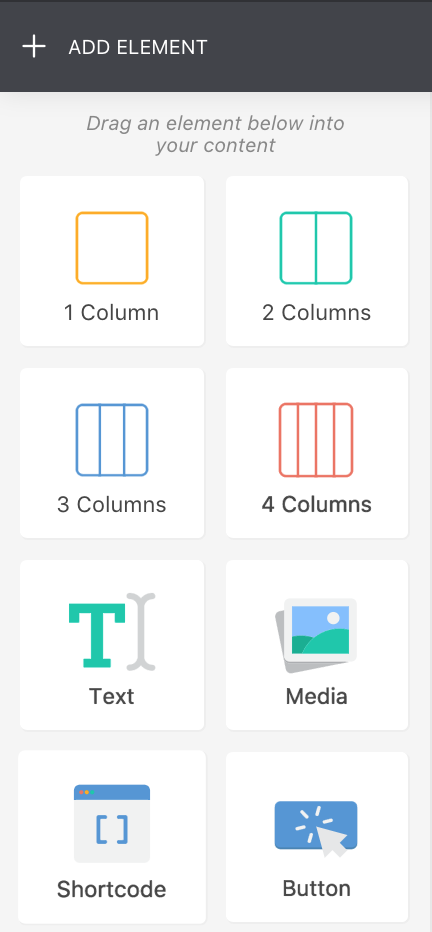
    Hover your mouse over the Add Elements button on the upper left of the screen to show the Add Element Panel. You can also just move your mouse to the left side of the screen to make it show up.

    To insert any element, hold down your mouse on one, then drag it into your content area. The area where the element would be placed would become highlighted. Release your mouse button to place the element.

    Styling and Modifying Elements

    Hover your mouse over any element that you have in your content and then outlines and toolbars should appear over them.

    0046713cb7 file YU6nUCc7jYYou can hover your mouse over the edges of the outlines to increase/decrease margins between elements.

    You can also click on a button on the toolbar to perform quick actions on the element. Clicking on the gear icon on the toolbar would bring up the Properties Inspector which contains more options.

    5c220b4ac9 file Odem5RLPok

    The Properties Inspector

    3e7e48b754 file INy1v5z9Oz

    The properties inspector gives you more control over the looks of your elements. You can add a lot of things like shadows, animations, change map colors, border radius, and plenty more.

    You can also access the properties of the parents of element. For example, if you placed an image inside a column and opened up the properties inspector, then you can access the properties of the image, the column it’s contained in, and the row which the column is contained in.

    The properties inspector contains a lot of different settings for different elements, so be sure to check them all out.

    Using Shortcodes

    Page Builder Sandwich shows you actual shortcodes in the frontend, and you can edit them easily too! 

    edee730340 file TqfWB9yv3y

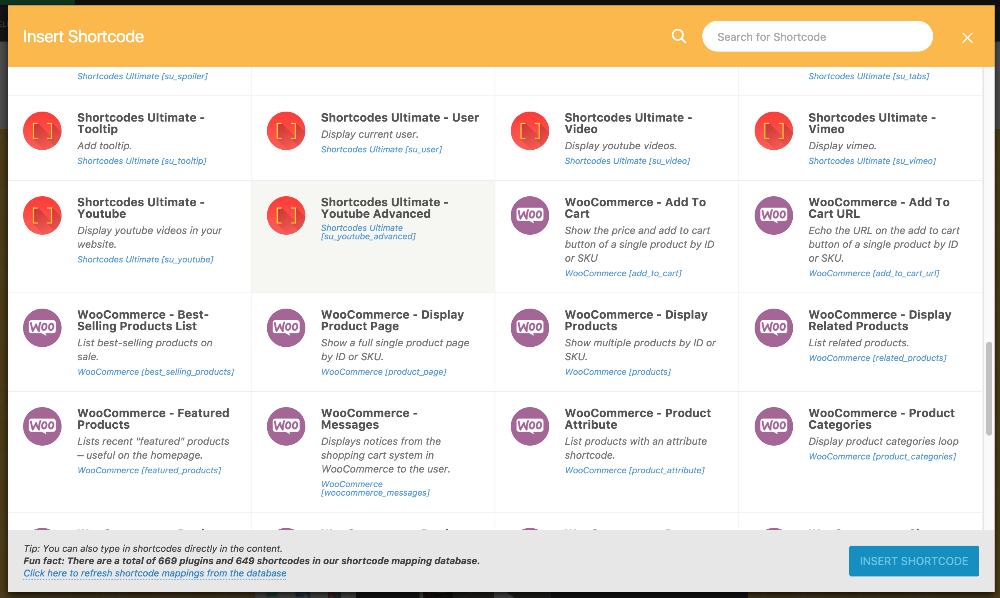
    If you have memorized your shortcodes, you can insert shortcodes by typing them directly in your content. But if you haven’t memorized them all (who does that?) the inspector lists all the shortcodes available in your site. Drag a  Shortcode button from the inspector into your content area and find the one you want to insert, click on that to insert it.

    Shortcodes get rendered into actual content in the frontend, to edit them, you can select it and check out their attributes in the inspector. Or for more control, you can double click on the shortcode to edit it in raw form. After performing your edits, your shortcode will update to reflect the changes.

    Rearranging Your Content

    You can click and drag anything and move them anywhere with PBS. When you drag something, move it on top of another element in the page, you can either move them above or below any other content.

    Saving Your Work

    ae0cf6f413 file

    Once you’re satisfied with your design, just click on the save button on the top left of your page. That’s it!

  • I Keep Getting A “Session Expired” Popup When Editing

    I Keep Getting A “Session Expired” Popup When Editing

    Page Builder Sandwich regularly checks whether you are still logged in WordPress. This is performed to ensure that your changes will indeed be saved by the time you hit the save button. This is also used for post locking and autosaves.

    We rely on the WordPress Heartbeat API in order to do our checks, and it in-turn relies on browser cookies and sessions. So if you keep getting those “session expired” popups while editing, there might be something hindering WordPress from tracking you properly. Here’re some stuff that you can do to solve this:

    Empty Your Cache

    If you have caching plugins installed, or DNS caching, or any form of caching, clear them. Also clear your browser cache. It’s possible that you are not being served the latest scripts for your site.

    Clear Your Cookies

    It’s also possible that your cookies have gotten corrupted, this can easily be solved by clearing your browser cookies from the settings of your browser. It’s usually near the option where you clear your browser’s cache.

    Check Your Site URL Settings

    Go to Settings > General and check your settings. Look for the settings for WordPress Address (URL) and Site Address (URL). The domains and protocols of those should match your actual domain. For example, if one has “http://” but you go to your site using “https://”, then the settings should read “https://”. Another common problem would be that one of those URLs has a “www” and one doesn’t.

    These should match:

    a96f7d7412 file jRzgrZO0et

    or:

    e00b20cbb4 file dTXaKDFHET

    To fix this, you can change the settings from Settings > General. If you cannot edit those settings, you can open up your FTP and edit the file wp-config.php, and add in the lines:

    define( 'WP_HOME', 'http://example.com' );
    define( 'WP_SITEURL', 'http://example.com' );
    
    Afterwards, clear your cache & cookies and try again.

    Make Sure The Heartbeat API Isn’t Disabled

    Lastly, check if you have a plugin (or theme) that forcefully disables WordPress’ Heartbeat API. It’s very helpful and we would personally recommend that you keep it enabled.
  • Where Do I Get Support?

    Where Do I Get Support?

    If you’re having trouble, we’re here to help! But first please check the documentation pages first, you might find the answer here and you’ll save time.

    • Support is NOT provided for the Lite version.. except for bugs.
    • Support is only provided for the Premium plugin and only if you have a valid license.
    • Licenses are valid 1 year after purchase.

    Email us your support inquiries at  [email protected]

  • Button Element

    Button Element

    Availability

    Lite Version Not available
    Premium Version All features available

    • Button element
    • Styles
    • Button Icons

    Usage

    Optionally highlight some text, then click on the button element in the inspector. This should bring up a modal where you can type in the URL to link to for your button. You can also search for any existing webpage that you have in your website from there.

    Unlike the other elements, buttons are placed inline, which means that they will be placed alongside other text (or other buttons). You cannot drag and drop individual buttons to other locations, but instead drag the button along with the text surrounding it.

    While editing, when you click on a button, you will be able to see additional styling options in the inspector. You can also hover your mouse over buttons to see the URL they link to, and other commands.

    Useful In

    • Linking to other pages
    • “Read more” or “Learn more” links
    • Landing page headings with 1 or more call-to-action buttons
  • Bundling PBS Inside a Theme You’re Selling

    Bundling PBS Inside a Theme You’re Selling

    If you are a theme developer, including PBS in your theme can greatly increase the value of your product.

    Contact us at [email protected], let’s collaborate!

  • How to Stop PBS From Showing Up

    How to Stop PBS From Showing Up

    You can prevent PB Sandwich from showing up in the front-end using the pbs_is_editable_by_user filter.

    For example, to stop PB Sandwich from showing up in a Custom Post Type identified by the slug slider, you can add this piece of code in your functions.php

    add_filter( 'pbs_is_editable_by_user', 'stop_pbs_in_sliders' );
    
    function stop_pbs_in_sliders( $editable ) {
    	if ( is_singular( 'slider' ) ) {
    		return false;
    	}
    	return $editable;
    }
    

    To stop PB Sandwich for a specific page/post, you can use the post ID to check:

    add_filter( 'pbs_is_editable_by_user', 'stop_pbs_for_123' );
    
    function stop_pbs_for_123( $editable ) {
    	global $post;
    	if ( is_singular() && ! empty( $post ) ) {
    		if ( '123' === $post->ID ) {
    			return false;
    		}
    	}
    	return $editable;
    }
    
  • PBSEditor.isEditing

    PBSEditor.isEditing

    Check whether PBS is turned on and in editing mode.

    Usage

    if ( PBSEditor.isEditing() ) {
    	// Do something when editing.
    }

    Parameters

    None.

    Returns

    Boolean. True when currently editing, false when not editing.

  • What Can I Edit with PBS?

    What Can I Edit with PBS?

    You can only edit the content of pages, posts and custom post types using Page Builder Sandwich.

    You cannot however edit theme template files such as:

    • Frontpage (if it’s set as your latest posts in Settings > Reading)
    • 404 pages
    • Category list pages
    • Tag list pages
    • Search results pages
    • and other similar pages

    Think of it this way, if there’s an “Edit Post” or “Edit Page” on your admin bar in your frontend, then the page should be editable.

  • pbs_saved_content

    pbs_saved_content

    Called after the content is saved. This is called when a save was initiated from the PBS editor.

    Parameters

    None

  • PageBuilderSandwich:: is_editable_by_user

    Used to check whether PBS is loaded in the front-end for the current post

    Usage

    PageBuilderSandwich::is_editable_by_user()
    

    Parameters

    None.

    Returns

    Boolean. True if PBS can edit the post, false otherwise.

  • The “Edit with Page Builder Sandwich” Button Doesn’t Appear

    The “Edit with Page Builder Sandwich” Button Doesn’t Appear

    If you can’t see the “Edit with Page Builder Sandwich” button in the frontend of your site, here’re a few things you can try:

    Make Sure Your Admin Bar Is Visible

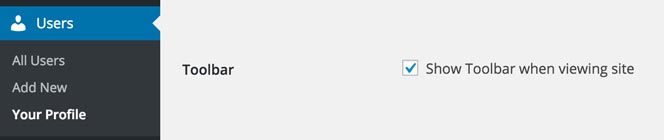
    The edit button for PB Sandwich is available in the admin bar in your frontend. Make sure the admin bar is visible by going to your administration and navigating to  Users > Your Profile and double check that the box for Show Toolbar when viewing site is ticked.
    e5960e581e file w9uN2EeCjm

    Make Sure You Are In a Page, Post or Custom Post Type

    Only Posts, Pages & Custom Post Types are Editable in the Frontend. You can only edit stuff in the frontend if you can edit them using WordPress’ content editor in the backend. The other areas of your site – e.g. the frontpage list of blog posts, list of all blog posts, category listings, 404 pages, search pages – are dynamic pages created by WordPress alongside the theme you are using and cannot be edited using PB Sandwich.

    One indicator if the current webpage is editable is if you can see an “Edit Post” or “Edit Page” on your admin bar.

    Make Sure Your Content Isn’t Dynamically Generated by Your Theme or a Plugin

    If your page/post is generated dynamically by a theme or plugin, then it won’t be editable with Page Builder Sandwich (and most likely in other page builders too). If you notice that your content editor in the backend is empty, but viewing your page in the frontend is full of content, then this is a good indicator that your page is dynamically generated.

    To check if your page is dynamically generated, view the source of your webpage (right click and then choose “View Page Source”). Search for the text “pbs-main-wrapper”, if you cannot see that text anywhere, then your page is dynamically generated.

    Here’re a few examples of dynamically generated content:

    • Your page is made up of multiple widgets that you add/edit using the Customizer,
    • Your page is made up of different pages pieced together by a “one page” theme (in this case you can still edit the individual pages, but not the combined one), or
    • Your page is made up of the latest blog posts.

    Try Adding Some Content First

    There have been cases where the theme didn’t display the content at all if it’s blank, and this made PBS mistakenly think that the page is uneditable. To check if this is the case, edit your page/post in the backend editor, try adding any text in your content (for example “hello”), then click on the “Edit with Page Builder Sandwich” button from there.

    Thanks Mathias Hellquist for this tip!

    Make Sure Your Page Isn’t “Owned” by Another Page Builder

    Some page builders make you choose to either use the default content editor of WordPress, or the page builder’s own editor. If you have already edited your page using another page builder, it’s possible that the page builder may have already “claimed” the content, and other content hooks/filters can no longer run. Because of this, sometimes Page Builder Sandwich won’t be able to detect where your content is and it won’t show the edit button because there’s nothing to edit.

    To fix this, just opt to not use that page builder for that specific page/post, and choose to just use the default content editor of WordPress.

    Make Sure You Have Editing Capabilities on the Page

    The edit button will not appear if you cannot edit the page. For example, if you are an editor or a contributor and you can write blog posts and articles in the site, that doesn’t necessarily mean that you can edit the front page or your contact us page. If you can see the “Edit Post” button on your admin bar, then you should also be able to edit it using PB Sandwich. Ask your site administrator for editing privileges if you need them.

    There Might Be a Javascript Error That Is Stopping PB Sandwich from Working

    PB Sandwich uses Javascript extensively. If there are Javascript errors that come from other scripts that you have in your site, this may prevent PB Sandwich from working. To check whether this is the case, you can open the developer console in your browser to check for errors. 

    I would recommend using Chrome for this one. Right click on anything in the page, then click on the “Inspect” option. This will bring up a new area on the bottom of your browser, click on the “console” tab. If you have errors, you should see something like this:

    4acce143a3 file

    If you do have an error, You can also get a clue where this is coming from by clicking or hovering your mouse over the script’s name:

    abb5a87c67 file ITjVcdhZQU

    These errors may come from your theme or other plugins that you may have. Having those errors fixed can make PB Sandwich work again.

    If your theme or one of your plugins is causing the Javascript error, kindly let us know via email at  [email protected] and we will do our best to fix the issue 🙂

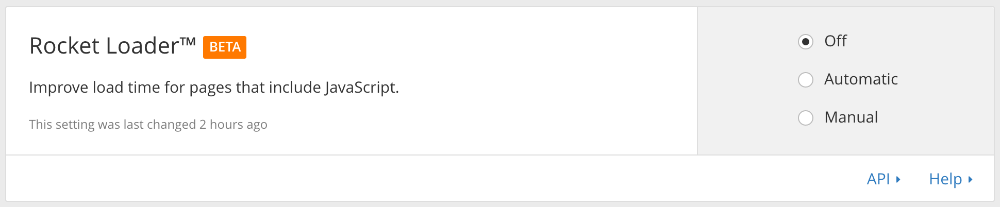
    If You Are Using CloudFlare, Make Sure Rocket Loader Is Turned Off

    CloudFlare is a widely used free DNS CDN. It’s great, but PBS currently has problems when it comes to the Rocket Loader feature. Rocket Loader improves the load time of Javascript files, but it messes up the dependency and call order of PBS’ scripts. If you have Rocket Loader turned on, the edit button for Page Builder Sandwich will not appear (and no Javascript console errors show up).

    To check if your site is using CloudFlare’s Rocket Loader, view the source of your webpage (right click and then choose “View Page Source”), and then search for the text “rocketscript”, if you find that text then you have Rocket Loader turned on.
    e4dff5b8c0 file tPnWvP09FF

    Read the article on  CloudFlare & Rocket Loader Compatibility for full instructions on how to turn it off.


    I Did All of Those and the Edit Button Is Still Not There!

    Okay at this point, if none of the above solutions work, then it might be time to explain why it isn’t showing up and what to do about it. Ready? Let’s go!

    The “Why” (in Non-Technical Terms)

    Page Builder Sandwich needs to know where your page/post’s content is located. We do this by listening to when WordPress loads the post’s content and “marking” that area, so that when everything’s loaded we can find where the good stuff is.

    Sometimes, some plugins override or bypass this process and instead try and load the content their own way. Sometimes this is okay, but in certain scenarios, especially when loading the main post’s content is concerned, this may cause some plugins to stop working. When another plugin bypasses this loading process, the “markings” we have performed may get lost, and when it comes time for the editor to kick in, it cannot find where your content is anymore. So, the edit button doesn’t appear! You may also find that some plugins that add content to your page, such as some social sharing plugins may also stop working because of this exact same thing.

    The “Why” (in Technical Terms)

    Page Builder Sandwich needs to  know where your page/post’s content is located, and it does this by hooking into the_content filter and adds a wrapper around your main content. Some plugins may override this and instead overwrite the content with a get_the_content() function further along the line. Unfortunately, doing this prevents ALL the_content filters from being called and hence PBS’ wrapper gets lost. Any other plugin’s changes would get lost as well.

    There is nothing wrong with using get_the_content() per se, but there may be adverse effects if this is used in the main query and inside single post template page instead of normal the_content() call where all the_content filters are ran.

    What to Do About It

    You can check if Page Builder Sandwich’s “markings” are not present by visiting your page/post in the frontend and viewing the page source while logged in. Search through the jumble of code if you can find the string:

    data-name="main-content"
    

    If you can find it, then there might just be a Javascript problem somewhere and just let us know the theme and plugins that you’re using and we can fix that.

    But if you cannot find it, then it may just be that your theme (or a plugin, but it’s most likely the theme if it’s a page or blog post) is doing something with the post content. If this is the case, then you should contact the theme author and let them know about the problem! You can also show them the technical “why” explanation above, this can help with the debugging 🙂

    If you feel confident tinkering around in PHP, you can try fixing it by finding the template file that handles the post content. One solution we’ve encountered is by replacing calls for:

    $content = get_the_content();
    

    with:

    ob_start();
    the_content();
    $content = ob_get_clean();<br>
    

    Note: The PHP variable may vary in yours, but the concept should be the same. If it works, then it would be better also if you can create a child theme instead of implementing this change in your theme directly. There also may be side-effects because of the change, so it’s better if you consult with your theme’s author about this.

  • Editing Your Post Title

    Editing Your Post Title

    Once you start editing with PBS, hover you mouse over the title of your page/post, an outline should appear on it. Click on the title to put your cursor on it and modify it.

    Formatting tools are not available in the title area, you cannot modify its styles nor add elements to the title.

  • Changing Your Post Status

    Changing Your Post Status

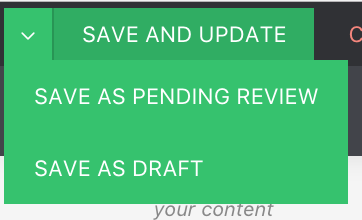
    To change your post status, hover your mouse over the drop down indicator on the save button on the upper left of the screen. This will show more saving options.

    ae0cf6f413 file

  • Embedding YouTube/Twitter/Facebook/External Content

    Embedding YouTube/Twitter/Facebook/External Content

    To embed content from external websites, simply paste the URL and then press enter. For example, you can copy and paste this URL from YouTube:

    https://www.youtube.com/watch?v=dQw4w9WgXcQ

    Iframe embedding is also possible by pasting <iframe> embed codes. For example, copy and paste this embed string:

    <iframe width=”560″ height=”315″ src=”https://www.youtube.com/embed/dQw4w9WgXcQ?rel=0″ frameborder=”0″ allowfullscreen></iframe>

    You can embed URLs from sites listed in the WordPress Codex: https://codex.wordpress.org/Embeds and any oEmbed enabled site.

  • How to Add Shortcodes

    How to Add Shortcodes

    Adding Shortcodes

    Shortcodes can be pasted or typed in directly while editing. After you’ve typed in your shortcode, press enter or navigate out the shortcode and it should show up in its rendered form right away.

    Another way of adding shortcodes is to click on the Shortcode Element on your inspector. This will bring up a popup that lists all the shortcodes available in your site. Select one or double click on any of them to insert it.

    Editing Shortcodes

    You can edit shortcodes in 2 ways:

    1. Click on the shortcode to select it and edit the shortcode properties in your inspector. If there are attributes & content in your shortcode, then those should appear as fields that you can change. The shortcode should update automatically with your changes.
    2. Double click on the shortcode (or hover your mouse over it then click on the edit toolbar button) to edit the raw shortcode. You can freely modify the whole shortcode this way. When you’re done, press enter or select another element to update the shortcode.

    Where are my Shortcode Attributes?

    Shortcode attributes cannot be detected by Page Builder Sandwich. So you will have to type those in. We are working on a way to map shortcodes into the system to make it easy for everyone. Stay tuned for that one.

  • Inserting Lorem Ipsum Placeholder/Dummy Text

    Inserting Lorem Ipsum Placeholder/Dummy Text

    To add some dummy text fast, type in the word “lorem” and then hit tab or enter to quickly add some lorem ipsum placeholder text:

    Lorem ipsum dolor sit amet, consectetur adipisicing elit. At dolor sed numquam? Sapiente autem adipisci, minus expedita enim, suscipit laboriosam deleniti possimus sequi pariatur explicabo numquam alias atque officia sit.

  • Javascript Hooks

    Javascript Hooks

    The bulk of Page Builder Sandwich is Javascript, and we’ve added a bunch of methods so that developers can extend and add more functionality to our page builder.

    To make things easier to developers, we’ve patterned things to how WordPress does things – via hooks!

    In WordPress, you typically use the functions add_filter() and add_action() to modify or add to the behavior of WP. Similarly in PBS, you can use wp.hooks.addFilter() and wp.hooks.addAction().

    The way you use them is also the same: use filters to modify stuff, and use actions to perform additional stuff. Those two function calls are essentially the same as with their PHP counterparts, except they run in Javascript.

    So as not to be confused between PHP hooks and Javascript hooks, we’ve named the Javascript hooks with a “period-case” (invented word). PHP hooks all use snake case:

    • pbs.save.payload – “period-case”, a JS hook
    • pbs_save_content_data – snake case, a PHP hook

    Refer to the Javascript Actions and Javascript Filters categories on the left menu to browse all the hooks.

    Credits

    For those curious, we’re using  https://github.com/carldanley/WP-JS-Hooks to add those nifty hook calls in Javascript