Category: How Tos

  • How to Retrieve a Lost PBS .zip File

    When you first purchase Page Builder Sandwich, a .zip file containing the plugin will automatically be downloaded into your computer.

    In case you lose this, you can download your .zip file again by accessing this link: https://dashboard.freemius.com/license-recovery/203/page-builder-sandwich/

    Entering your license on this link will allow you to retrieve your .zip file of Page Builder Sandwich, along with your license and account details.

  • Making Images Peek Outside Your Container

    Making Images Peek Outside Your Container

    Here I’ve added a row with a background color and then added an image inside it. Here it is:

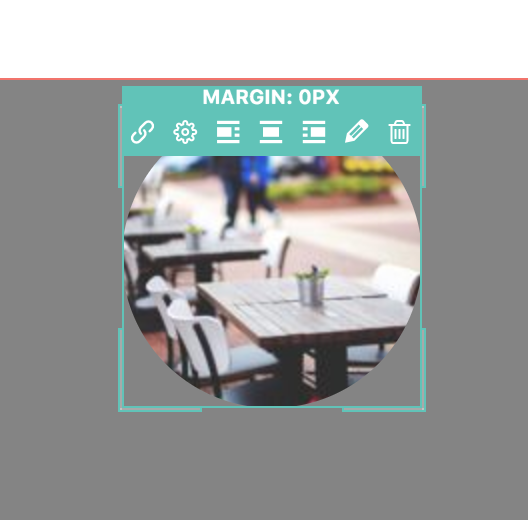
    7a1ad1cd25 file 029qnDthFOTo make it “peek” above the container, hover your mouse over the element that you want to move. Then when the outlines show up, move your mouse beyond the top of the outline. It should show the current top margin value:

    3bb498880e file FqLy7ZTTHD

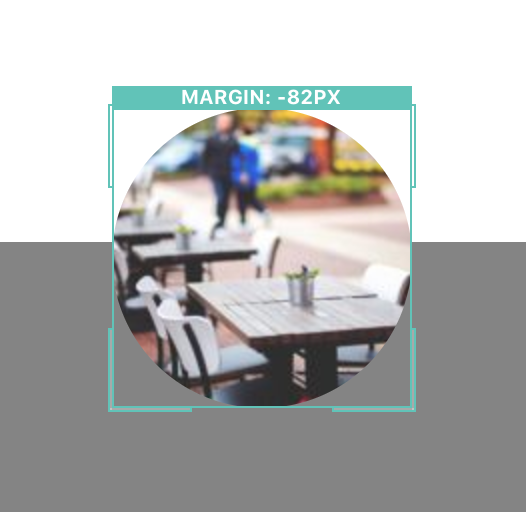
    Click and drag the top margin upward to decrease your margin, making it a negative value:

    4a89f1e31e file Zm8Z0aOtCs

    Now the image “peeks” outside the row!

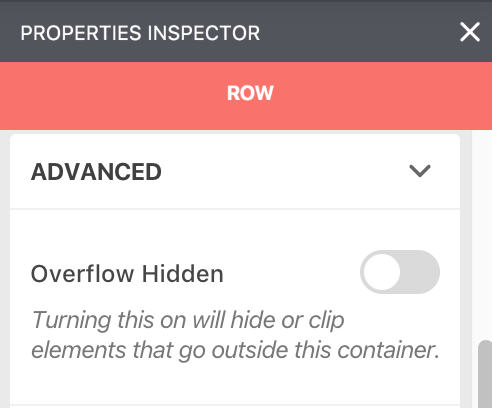
    If the element is getting cut off when it passes beyond the row, open the properties inspector for the row and toggle off the overflow hidden option in the Advanced options:

    0787678afd file pUDej5DLsQ

  • Adding Same-Page Scrolling Anchor Links

    Adding Same-Page Scrolling Anchor Links

    This is a premium feature and available in version 4.0.1+

    Same-page scrolling anchor links are links that point to a specific location in the same page. When you click on a same-page link, your browser will scroll towards the pointed area.

    You need two things in order to create a same-page anchor link:

    1. A custom class or a custom ID on an element, and
    2. A link or button that references the custom class or ID

    1. A custom class or a custom ID on an element

    Pick any element near the bottom of your page and then open up its properties. In the advanced area, add a custom class or custom ID named ” go_here“

    2. A link or button that references the custom class or ID

    Now create a link or add a button element somewhere near the top of your page. Instead of adding a URL as the link, use ” .go_here” (with the dot) if you added “go_here” as a custom class; or use “#go_here” (with the hash) if you added it as a custom ID.

    After you save your page, when you click on your link/button, it should now scroll smoothly towards the element on the bottom of your page.

    You can also use this to target named anchors

    Named anchors such as

    <a name="go_here"></a>

    can also be targetted by adding a link to “#go_here” (with the hash)

    Other uses

    You can also target any other areas in your page, even outside the editor area as long as you target them using their class names or IDs.


  • Adding Entrance Animations to Your Elements

    Adding Entrance Animations to Your Elements

    In most elements (not shortcodes however), you can specify an entrance animation that plays when the element becomes visible on your screen.

    To do this, hover over an element to make the toolbar appear, and then click on the gear button.

    5c220b4ac9 file Odem5RLPok

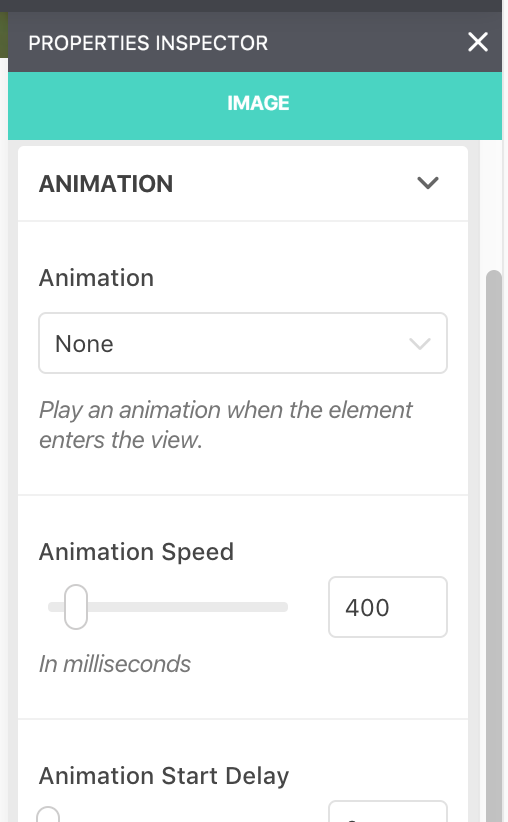
    This should bring up the inspector. Navigate over to the Animations area, open it up and then pick an animation.

    d2675375dd file bKhEnSFBNj

    After picking an animation, it should play to show you a preview. You can further refine the animation with the other options provided.

    Animations play only when the user scrolls and the element comes into view. If the element is already visible when you arrive on your page, it will not animate.

  • Using Markdown

    Using Markdown

    Markdown is basically a syntax that you type in while editing in order to add or change the formatting of your text. These are like shortcut keys, but instead of pressing the combination, you type them in.

    Below is a list of all supported Markdown syntaxes in Page Builder Sandwich.

    Block Elements

    (Mind the spaces)

    # Heading1
    ## Heading2

    up to:

    ###### Heading6 
    > Blockquote 
    (4 spaces)Preformatted Text/Code 

    Lists

    * Bullet list  - Bullet list 
    1. Numbered list  1) Numbered list 

    Horizontal Rule

    -  ------------------------------(or multiple dashes) 

    Links

    Typing in urls will automatically convert into a link:

    Head over to https://pagebuildersandwich.com 
    Dummy Content

    Type “lorem” then press tab to create dummy text content.

  • Coloring Your Background Images

    Coloring Your Background Images

    You can add background images to your rows and backgrounds. What’s more is that you can also tint your background image with a color to make it fit better with your design.

    For example, I have here a row with a background image with some white overlaid text. It’s quite hard to see the text right now because of the background image I picked.

    2b91fa8f2a file mzgaf4V044

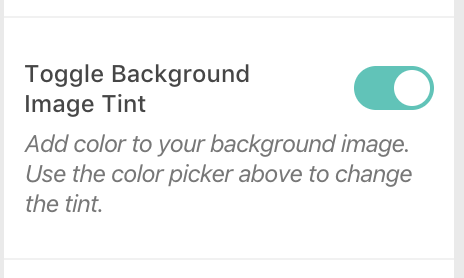
    To make things look better, we can add some color to our background image. To do this, hover your mouse over the row, then click on the row’s gear icon to open up its properties. Go to the Background options, then turn on Background Image Tint.

    bafd9f5d79 file VqSdQk08dVAfter it’s turned on, you change the background color and it will now add a colored tint to your background image. You can also change the strength or opacity of the tint. Here’s my background tinted green to make the text more visible:

    766d6beaa3 file jSAuV7QQ48

  • Editing Your Post Title

    Editing Your Post Title

    Once you start editing with PBS, hover you mouse over the title of your page/post, an outline should appear on it. Click on the title to put your cursor on it and modify it.

    Formatting tools are not available in the title area, you cannot modify its styles nor add elements to the title.

  • Changing Your Post Status

    Changing Your Post Status

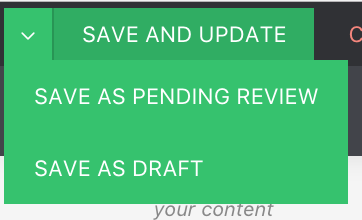
    To change your post status, hover your mouse over the drop down indicator on the save button on the upper left of the screen. This will show more saving options.

    ae0cf6f413 file

  • Embedding YouTube/Twitter/Facebook/External Content

    Embedding YouTube/Twitter/Facebook/External Content

    To embed content from external websites, simply paste the URL and then press enter. For example, you can copy and paste this URL from YouTube:

    https://www.youtube.com/watch?v=dQw4w9WgXcQ

    Iframe embedding is also possible by pasting <iframe> embed codes. For example, copy and paste this embed string:

    <iframe width=”560″ height=”315″ src=”https://www.youtube.com/embed/dQw4w9WgXcQ?rel=0″ frameborder=”0″ allowfullscreen></iframe>

    You can embed URLs from sites listed in the WordPress Codex: https://codex.wordpress.org/Embeds and any oEmbed enabled site.

  • Inserting Lorem Ipsum Placeholder/Dummy Text

    Inserting Lorem Ipsum Placeholder/Dummy Text

    To add some dummy text fast, type in the word “lorem” and then hit tab or enter to quickly add some lorem ipsum placeholder text:

    Lorem ipsum dolor sit amet, consectetur adipisicing elit. At dolor sed numquam? Sapiente autem adipisci, minus expedita enim, suscipit laboriosam deleniti possimus sequi pariatur explicabo numquam alias atque officia sit.