The “Edit with Page Builder Sandwich” Button Doesn’t Appear
If you can’t see the “Edit with Page Builder Sandwich” button in the frontend of your site, here’re a few things you can try:
Make Sure Your Admin Bar Is Visible
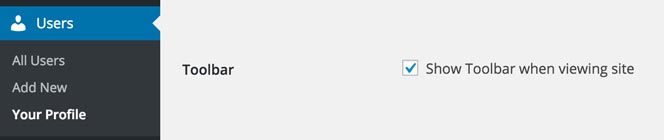
The edit button for PB Sandwich is available in the admin bar in your frontend. Make sure the admin bar is visible by going to your administration and navigating to Users > Your Profile and double check that the box for Show Toolbar when viewing site is ticked.
Make Sure You Are In a Page, Post or Custom Post Type
Only Posts, Pages & Custom Post Types are Editable in the Frontend. You can only edit stuff in the frontend if you can edit them using WordPress’ content editor in the backend. The other areas of your site – e.g. the frontpage list of blog posts, list of all blog posts, category listings, 404 pages, search pages – are dynamic pages created by WordPress alongside the theme you are using and cannot be edited using PB Sandwich.
One indicator if the current webpage is editable is if you can see an “Edit Post” or “Edit Page” on your admin bar.
Make Sure Your Content Isn’t Dynamically Generated by Your Theme or a Plugin
If your page/post is generated dynamically by a theme or plugin, then it won’t be editable with Page Builder Sandwich (and most likely in other page builders too). If you notice that your content editor in the backend is empty, but viewing your page in the frontend is full of content, then this is a good indicator that your page is dynamically generated.
To check if your page is dynamically generated, view the source of your webpage (right click and then choose “View Page Source”). Search for the text “pbs-main-wrapper”, if you cannot see that text anywhere, then your page is dynamically generated.
Here’re a few examples of dynamically generated content:
- Your page is made up of multiple widgets that you add/edit using the Customizer,
- Your page is made up of different pages pieced together by a “one page” theme (in this case you can still edit the individual pages, but not the combined one), or
- Your page is made up of the latest blog posts.
Try Adding Some Content First
There have been cases where the theme didn’t display the content at all if it’s blank, and this made PBS mistakenly think that the page is uneditable. To check if this is the case, edit your page/post in the backend editor, try adding any text in your content (for example “hello”), then click on the “Edit with Page Builder Sandwich” button from there.
Thanks Mathias Hellquist for this tip!
Make Sure Your Page Isn’t “Owned” by Another Page Builder
Some page builders make you choose to either use the default content editor of WordPress, or the page builder’s own editor. If you have already edited your page using another page builder, it’s possible that the page builder may have already “claimed” the content, and other content hooks/filters can no longer run. Because of this, sometimes Page Builder Sandwich won’t be able to detect where your content is and it won’t show the edit button because there’s nothing to edit.
To fix this, just opt to not use that page builder for that specific page/post, and choose to just use the default content editor of WordPress.
Make Sure You Have Editing Capabilities on the Page
The edit button will not appear if you cannot edit the page. For example, if you are an editor or a contributor and you can write blog posts and articles in the site, that doesn’t necessarily mean that you can edit the front page or your contact us page. If you can see the “Edit Post” button on your admin bar, then you should also be able to edit it using PB Sandwich. Ask your site administrator for editing privileges if you need them.
There Might Be a Javascript Error That Is Stopping PB Sandwich from Working
PB Sandwich uses Javascript extensively. If there are Javascript errors that come from other scripts that you have in your site, this may prevent PB Sandwich from working. To check whether this is the case, you can open the developer console in your browser to check for errors.
I would recommend using Chrome for this one. Right click on anything in the page, then click on the “Inspect” option. This will bring up a new area on the bottom of your browser, click on the “console” tab. If you have errors, you should see something like this:

If you do have an error, You can also get a clue where this is coming from by clicking or hovering your mouse over the script’s name:

These errors may come from your theme or other plugins that you may have. Having those errors fixed can make PB Sandwich work again.
If your theme or one of your plugins is causing the Javascript error, kindly let us know via email at [email protected] and we will do our best to fix the issue 🙂
If You Are Using CloudFlare, Make Sure Rocket Loader Is Turned Off
CloudFlare is a widely used free DNS CDN. It’s great, but PBS currently has problems when it comes to the Rocket Loader feature. Rocket Loader improves the load time of Javascript files, but it messes up the dependency and call order of PBS’ scripts. If you have Rocket Loader turned on, the edit button for Page Builder Sandwich will not appear (and no Javascript console errors show up).
To check if your site is using CloudFlare’s Rocket Loader, view the source of your webpage (right click and then choose “View Page Source”), and then search for the text “rocketscript”, if you find that text then you have Rocket Loader turned on.
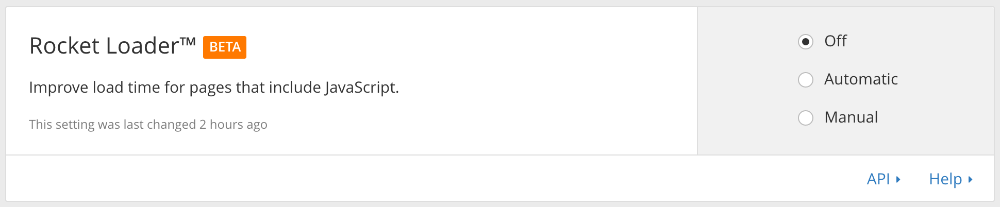
Read the article on CloudFlare & Rocket Loader Compatibility for full instructions on how to turn it off.
I Did All of Those and the Edit Button Is Still Not There!
Okay at this point, if none of the above solutions work, then it might be time to explain why it isn’t showing up and what to do about it. Ready? Let’s go!
The “Why” (in Non-Technical Terms)
Page Builder Sandwich needs to know where your page/post’s content is located. We do this by listening to when WordPress loads the post’s content and “marking” that area, so that when everything’s loaded we can find where the good stuff is.
Sometimes, some plugins override or bypass this process and instead try and load the content their own way. Sometimes this is okay, but in certain scenarios, especially when loading the main post’s content is concerned, this may cause some plugins to stop working. When another plugin bypasses this loading process, the “markings” we have performed may get lost, and when it comes time for the editor to kick in, it cannot find where your content is anymore. So, the edit button doesn’t appear! You may also find that some plugins that add content to your page, such as some social sharing plugins may also stop working because of this exact same thing.
The “Why” (in Technical Terms)
Page Builder Sandwich needs to know where your page/post’s content is located, and it does this by hooking into the_content filter and adds a wrapper around your main content. Some plugins may override this and instead overwrite the content with a get_the_content() function further along the line. Unfortunately, doing this prevents ALL the_content filters from being called and hence PBS’ wrapper gets lost. Any other plugin’s changes would get lost as well.
There is nothing wrong with using get_the_content() per se, but there may be adverse effects if this is used in the main query and inside single post template page instead of normal the_content() call where all the_content filters are ran.
What to Do About It
You can check if Page Builder Sandwich’s “markings” are not present by visiting your page/post in the frontend and viewing the page source while logged in. Search through the jumble of code if you can find the string:
data-name="main-content"
If you can find it, then there might just be a Javascript problem somewhere and just let us know the theme and plugins that you’re using and we can fix that.
But if you cannot find it, then it may just be that your theme (or a plugin, but it’s most likely the theme if it’s a page or blog post) is doing something with the post content. If this is the case, then you should contact the theme author and let them know about the problem! You can also show them the technical “why” explanation above, this can help with the debugging 🙂
If you feel confident tinkering around in PHP, you can try fixing it by finding the template file that handles the post content. One solution we’ve encountered is by replacing calls for:
$content = get_the_content();
with:
ob_start();
the_content();
$content = ob_get_clean();<br>
Note: The PHP variable may vary in yours, but the concept should be the same. If it works, then it would be better also if you can create a child theme instead of implementing this change in your theme directly. There also may be side-effects because of the change, so it’s better if you consult with your theme’s author about this.


